What is Folkbase?
Folkbase is a free personal CRM that keeps your relationships in a Google Sheet you own.
Everything you log about somebody gathers on their profile, so none of it has to live in your head. There are no leads, no deals, and no pipeline stages, because Folkbase is not built for sales.
Folkbase is different from many other CRMs: the data lives in your own Google account. All the information is yours, and stays yours. No server holds your contacts or any of your proprietary information. Once you are signed in, Folkbase keeps working if your connection drops: changes queue up and sync back to your sheet when you are online again. You’re always in control.
Signing in + first-time setup
One-time setup. No install or credit card needed.
Sign in with Google in Chrome, Edge, Safari, or Firefox, and approve the Drive access. Folkbase then creates a sheet called Folkbase - [Your Name] in your own Drive, and everything you add saves straight into it from then on.
The Guides page covers these steps one at a time, then goes on to adding your first contacts and logging your first conversation.
The dashboard and search
Where you land when you sign in, and how to find anything from anywhere.
Dashboard
Your home screen: see today’s tasks and recent activity.
Search
One bar, from any screen: people, organizations, events, notes, and everything else you have put in.
Everything else has its own section below, and the sidebar is the fastest way there.
Adding and managing contacts
The first thing you should do is add people into your database. You can import your contacts directly to Folkbase (whether from your phone, Google Contacts, or a spreadsheet). The built-in deduplication check goes through them, finds people that should (or could) be merged, and confirms the upload whenever you are ready. You can also test the waters and add a few contacts manually.
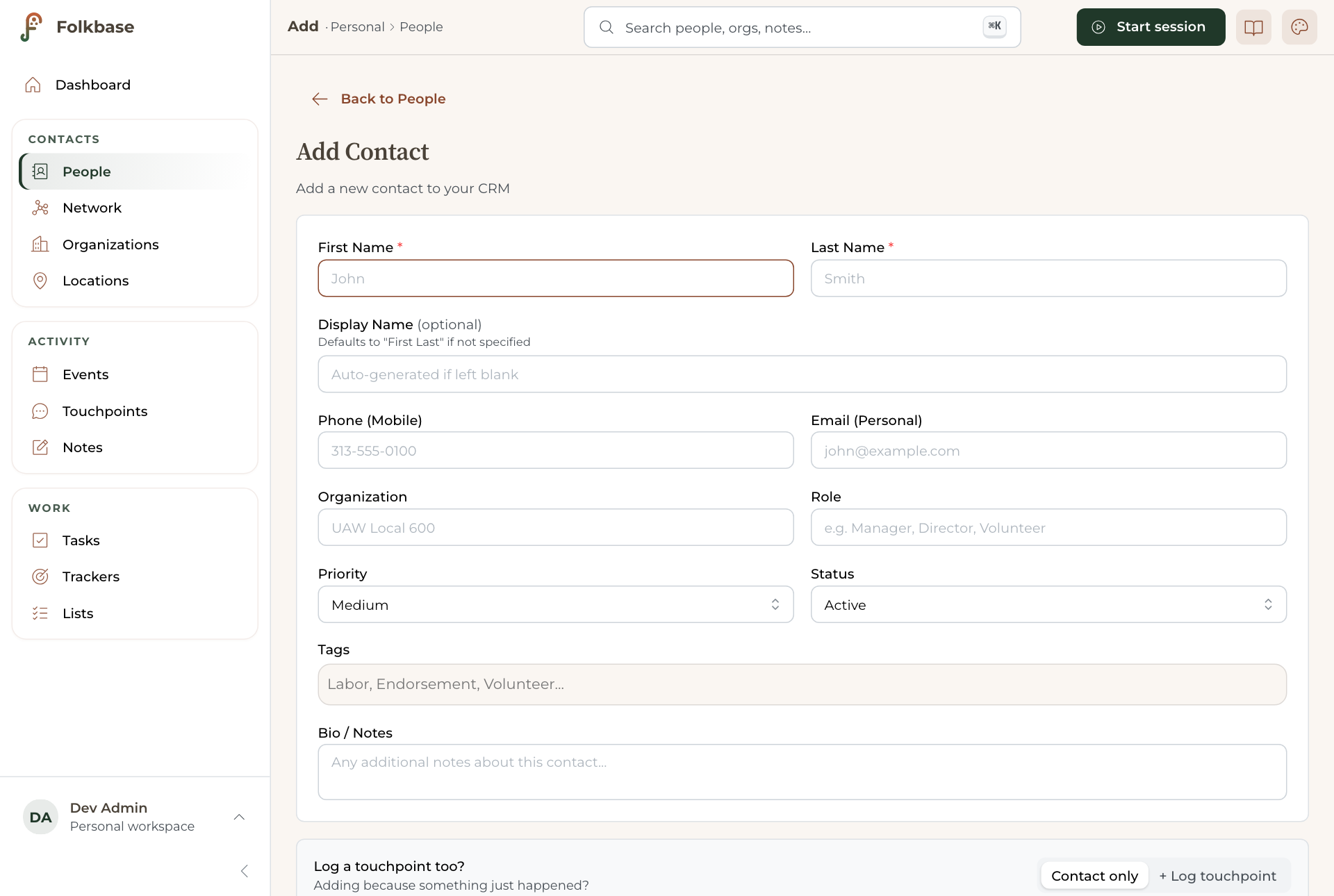
- Go to Contacts and click Add Contact.
- You only need to fill in a name to create a contact. You are free, however, to add other information, such as phone, email, address, the organization they are part of, and any other relevant notes.
- You can set a priority (No Urgency → Urgent) and a status (Active, Inactive, Do Not Contact). These are used to drive filters and reminders down the line. Do Not Contact stops every reminder and outreach prompt about someone, but it leaves the lists and trackers you built by hand exactly as they are, so those rows stay put and simply go quiet. When you set it on someone who is on one, we say so and offer to take them off. Removing them is permanent, so it is never the default.
- Optional: set Keep in touch to create a cadence, such as Weekly, Monthly, Quarterly, Twice a year, or Yearly.
- When done, hit save. You’ll then land on the contact’s profile, showing their notes, overall timeline, touchpoints, relationships, and network.
To edit multiple contacts at once, select them from the Contacts list and use Batch Edit. You can also copy them into another workspace with Bulk Copy. To copy a single contact, open their profile and use Copy to…, then pick a destination, another workspace for example. If you’re in a workspace and have the right credentials from the workspace admin, you can Copy to… your personal space. Either way, only their contact information is copied (notes and touchpoints stay behind), since the copy is an independent record.
If a contact is missing key details (ie, no way to reach them), it shows up under More → Review Incomplete, which is also surfaced on your Dashboard. The review walks you through each flagged contact one at a time, so you can fill in the gaps or merge it into an existing contact.
Keeping in touch: cadence
A cadence is a promise made to yourself about one person: a consistent time when something is due, tied to a specific contact. Folkbase counts from your last touchpoint with them, and when your promise slips, it alerts you on your Dashboard. Logging a touchpoint resets the clock.
You can see and use a cadence everywhere it matters: filter the People list by Keep in touch (including No cadence), set one across a selection with Batch Edit, or build a list from it. You can write your own rule that requires a given cadence.
Blank is the normal case. Most people don’t need a cadence! A contact without one is completely silent. It never appears in that list, and it never nags. Your imported contacts always arrive with no cadence, so bringing in four hundred people never buries you in reminders. Promote someone to a cadence when you actually mean it, and keep track so you don’t fall behind.
Archiving and restoring contacts
When someone no longer belongs in your active list, archive them! Archiving is the safe option: they are hidden everywhere in Folkbase, and everything about them is kept, so you can bring them back anytime.
- Archive one contact: open the contact, click Edit Contact, then Archive contact.
- Archive several contacts: select the contacts and choose Archive from the bulk toolbar.
- See archived contacts: turn on the Archived chip in the People filter row. The list will then show only archived people.
- Restore: from the Archived view, select people and click Restore, or open an archived profile and click Restore contact. Their priority and status come back exactly as before.
Archiving never changes a contact’s status (Active / Inactive / Do Not Contact)! These stay independent. But if you import someone who matches an archived contact, the duplicate review flags them as Archived and offers a Restore and merge.
Organizations
Group the people you know by where they work, volunteer, or belong. Think companies, non-profits, churches, and clubs.
An organization is a record for a group, separate from the individual people in it. Once you set a contact’s Organization field, that person shows up automatically under the organization. You can view everyone else in the organization, and see how it all connects.
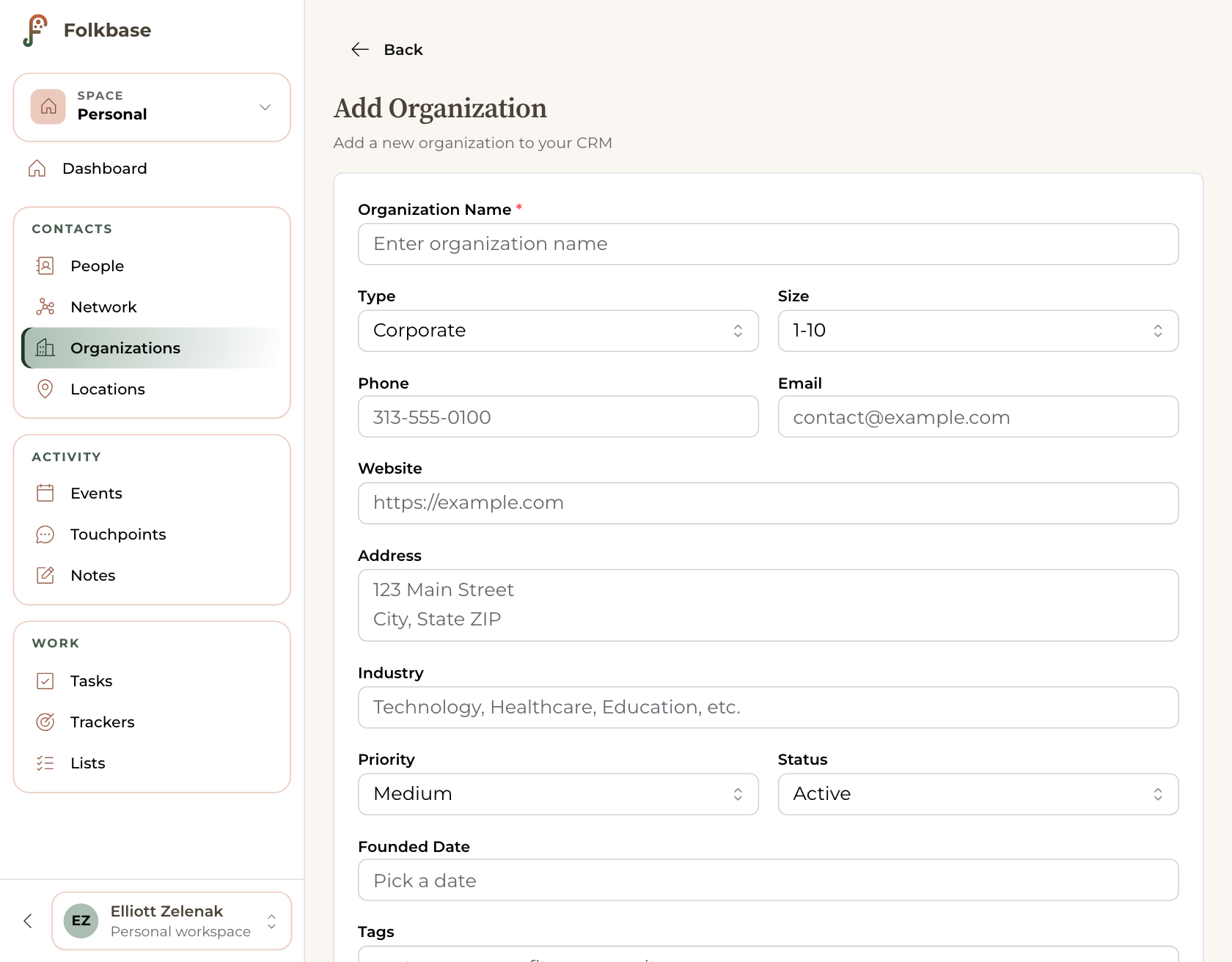
- Go to Organizations and click Add Organization.
- Enter an Organization Name (the only required field).
- Add any details that help: type, size, industry, phone, email, website, address, or a founded date.
- Set a priority (No Urgency → Urgent) and status (Active, Inactive) if you like, plus tags and notes.
- Save. You’ll land on the organization’s profile.
Each profile has tabs for Details, Key Contacts (everyone linked to this organization), Events, and Notes.
Locations
Keep track of the places that matter: your favorite coffee shop, venues, offices, meeting locations, community centers.
Locations are useful when the where matters as much as the who: a regular meeting venue, an office, or even the hall you book for your events.
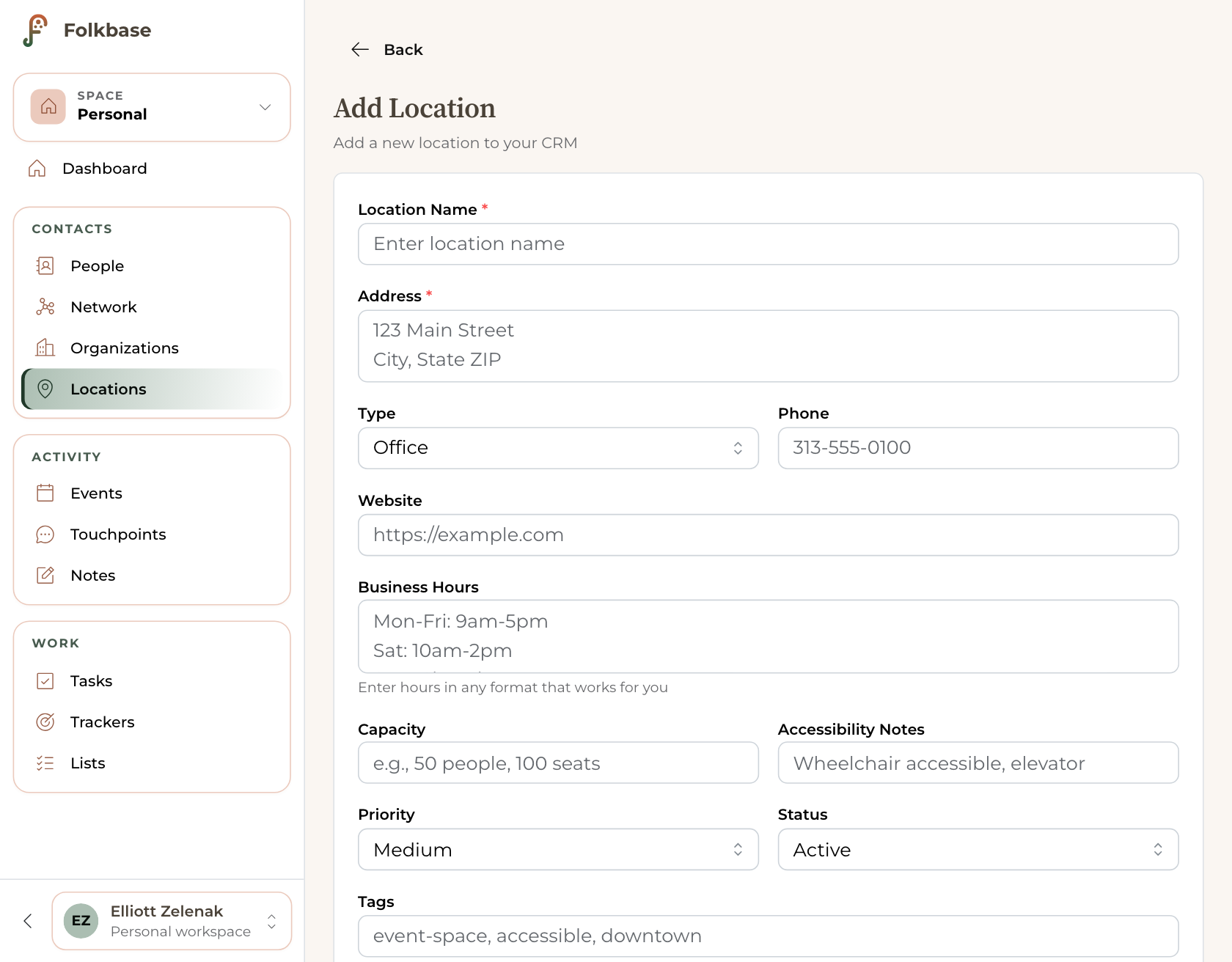
- Go to Locations and click Add Location.
- Enter a Location Name and Address (both required).
- Add any of: type, phone, website, business hours, capacity, or accessibility notes.
- Set a priority and status if useful, plus tags and notes.
- Save. You’ll land on the location’s profile.
Each profile has a Details tab and a Visit History tab that gathers the times you’ve been there.
Logging touchpoints
A touchpoint is any interaction you have: a call, email, meeting, text, or event.
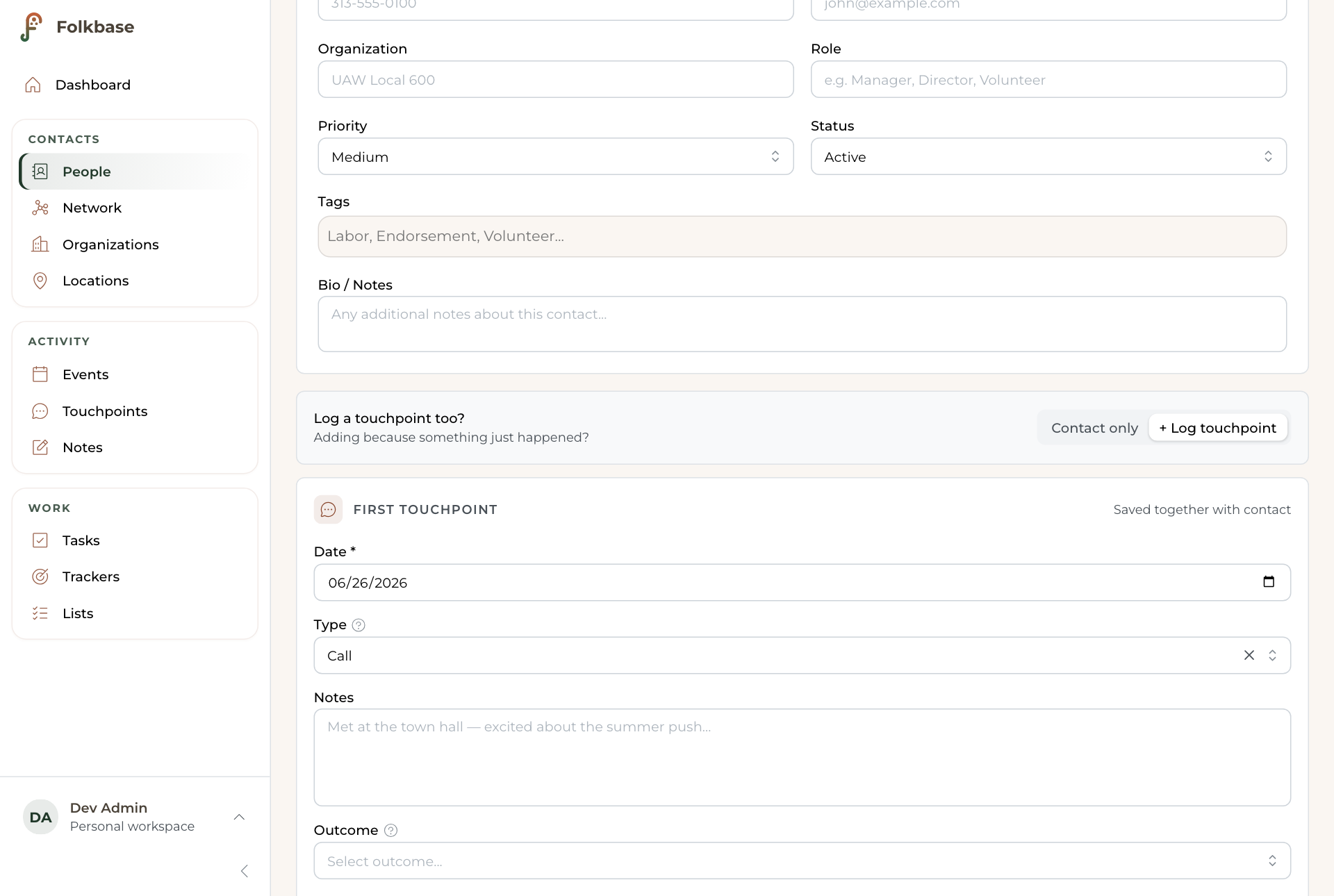
- From a contact’s profile (or the quick-log button anywhere), click Log Touchpoint.
- Choose a type: Call, Email, Meeting, Text, Event, or Other.
- Record the outcome: Successful, No Answer, Left Message, Will Follow Up, Not Interested, and so on.
- Add the date and any notes, then save.
Every touchpoint feeds the contact’s “last contacted” date, so you can always see who’s gone cold. The Touchpoints page lists all of them, filterable by both type and outcome.
Notes and Braindump
Capture now. Organize later.
Two ways to capture:
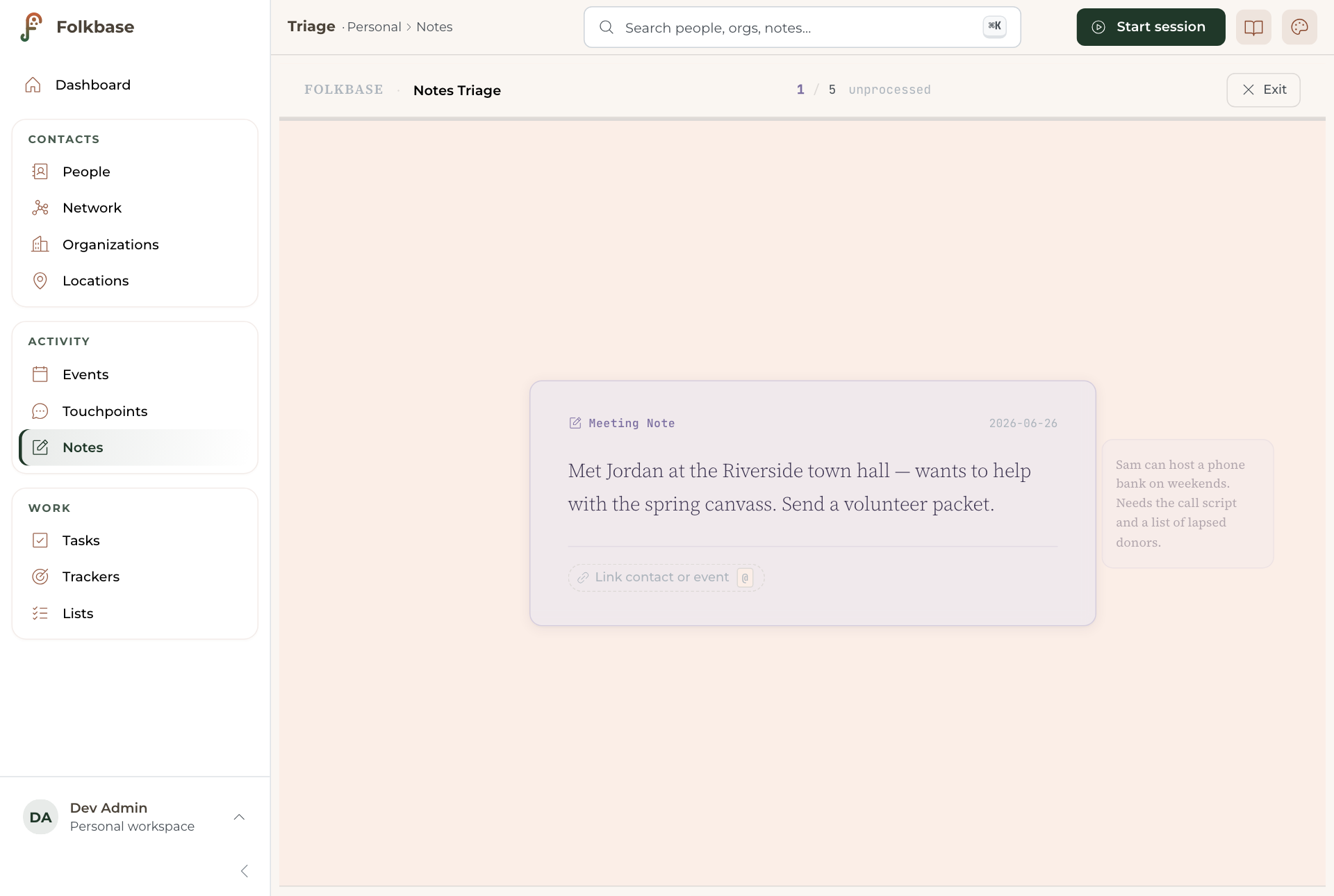
- Braindump: hit the floating note button in the corner (you can also press Ctrl/Cmd + B, or open the Braindump page) and just type. No need to decide what it’s about just yet, you can triage it later.
- A note on a contact: open a profile and add a note directly, tagged to that contact.
Loose notes are collected in your Notes Inbox. When you have a minute, open Triage and assign each note to the right contact. You can also commit several notes at once with Bulk Commit.
Tasks
The things you’ve promised people.
- Open Tasks and add a task with a due date and a priority.
- Priorities are color-coded: Urgent, High, Medium, Low.
- Link a task to a contact so it shows up on their profile too.
Anything due today surfaces on your Dashboard the next time you sign in.
Lists and Work Mode
Outreach lists, prospect lists, holiday-card lists, or anything you can organize.
- Go to Lists → Create List, and give it a name.
- Add contacts with Add Contacts to List.
- Click Work this list to enter Work Mode. This starts a focused, one-person-at-a-time view that walks you through the whole list (so nobody gets skipped).
Sublists
A list is a working set of people: for example, XYZ Campaign. Inside it, you’ll usually want task-specific subsets: outreach round 1, needs follow-up, confirmed. These are sublists. To create one, open a list’s ⋯ menu and choose Add sublist.
A sublist is always drawn from its parent, and Folkbase keeps that true for you:
- Adding someone to a sublist adds them to the parent too. The picker starts from the parent’s people, and if you pull in someone from outside it, Folkbase tells you before it does.
- Removing someone from the parent removes them from every sublist.
- A smart sublist’s filter rules only look at the parent list’s people, so “everyone in X Campaign who hasn’t been contacted” is a rule you can actually write.
- Deleting a parent deletes its sublists (it names them first).
- Sublists go one level deep, filed under their parent list’s category.
The point is that the roster stays trustworthy: nobody can be in a subset of a campaign they aren’t in.
Trackers
Multi-touch campaigns where you can see who’s done and who’s left.
- Go to Trackers → New Tracker.
- Add the people you’re working through (or import them).
- Open the tracker to see progress at a glance. You can jump into a Work Session to power through outreach.
- Use Review to check results when the campaign winds down.
Events
Track gatherings and who was there.
- Go to Events → Add Event.
- Open an event to add attendees, attach notes, or log a touchpoint for everyone who attended at once (Bulk Touchpoint).
- If you use Google Calendar, Sync Past Meetings can pull past meetings in automatically.
- It works the other way too. Open an event on Folkbase, add attendees, and choose Send Calendar Invites to add the event to your Google Calendar and email everyone who has an address. Edits and deletions you make in Folkbase then sync back to that calendar event. (This requires turning on calendar access, see Settings → Connections.)
Network view
See how the people you know connect.
Link contacts to each other from any profile (click Add Relationship), then open Relationships to see the whole web as a visual graph. It’s great for spotting introductions and mutual connections.
Every link you record becomes a line in the graph, with its own relationship type, so clusters start to form: who knows whom, which people bridge two groups, and where a warm introduction might come from. Click any node to jump straight to that contact, and drag to explore. It’s especially useful right before a meeting, since a quick look reminds you how everyone in the room is connected. The more relationships you log, the more the map is worth.
Call Mode and Meeting Mode
Focused, distraction-free screens for when you’re live.
Call Mode opens a single contact in a clean view built for being on the phone: their key info is front and center, alongside a fast way to log the call as you go. Meeting Mode is the same idea for a live meeting: capture notes and touchpoints in the moment, log who attended, and sort it all after.
Importing and exporting
Bring contacts in, or get your data out. Either way, it’s always yours.
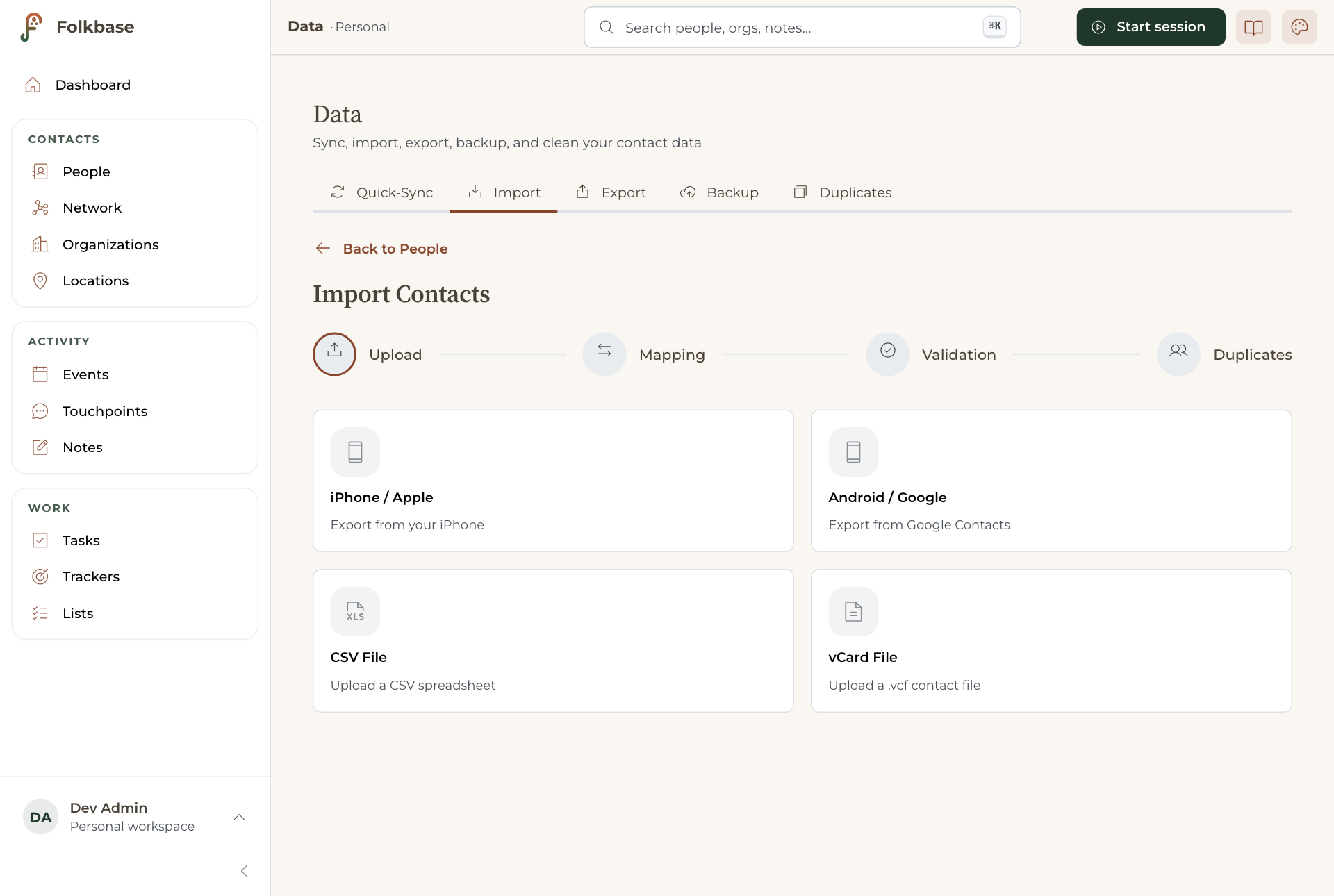
Everything data-related lives under Data, in five tabs:
- Import: bring contacts in from your phone, Google Contacts, or a spreadsheet. Folkbase accepts vCard (.vcf) and CSV, maps the columns to its fields, and checks for duplicates before you commit.
- Export: download your data any time.
- Duplicates: find and merge duplicate contacts, with a preview before you commit.
- Quick Sync: push recent changes to your sheet on demand.
- Backup and Restore: save a copy of your data and restore if needed.
Three ways to get your data back
They cover different accidents, so it’s worth knowing which one you want:
- Version history (usually the fastest): Google keeps a complete edit history of your sheet for free. Open the sheet from Data › Backup, then choose File › Version history › See version history and roll back to any earlier point. Before a big import or cleanup, it helps to name the current version (File › Version history › Name current version): named versions are kept for good, while unnamed ones can get merged together over time, so naming one guarantees a clean point to roll back to.
- JSON backup: the portable one. Download a full copy you can keep off Google entirely, hand to someone else, or restore into a different sheet or account. Version history can’t do any of that.
- Restore from backup: load a JSON backup back in. Safe mode only writes into empty tabs, so it can’t create duplicates.
In a team workspace, version history is only reachable by the workspace owner. Members work through Folkbase, so they don’t have direct access to the underlying sheet.
Workspaces and sharing
Keep personal and shared relationships separate.
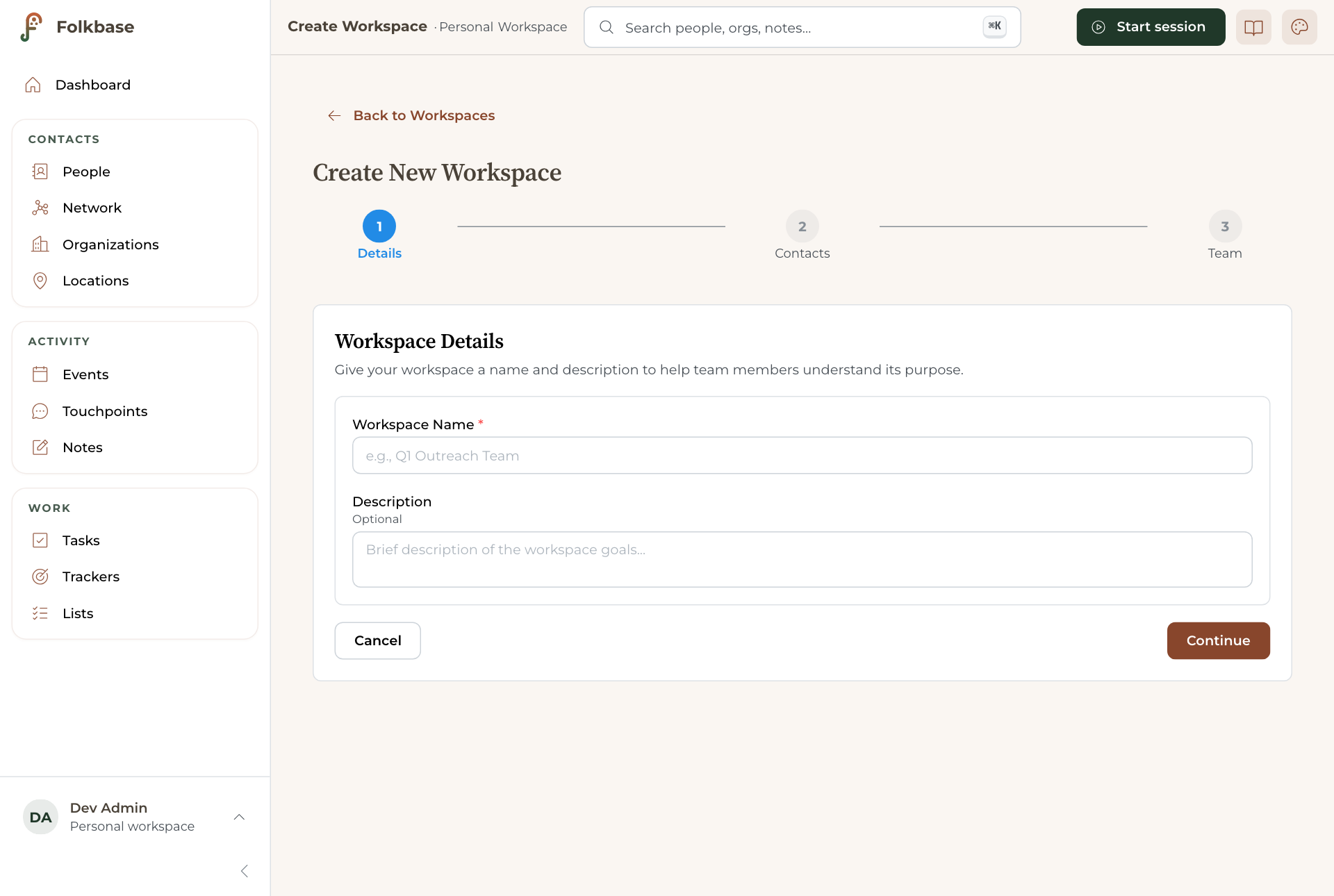
By default you’re in your personal workspace. You can create a shared workspace for a team, a campaign, or a family:
- Go to Workspaces → Create Workspace and follow the wizard (it includes a one-time Apps Script consent step).
- The success screen appears right away and shows your invite links. Invites start working shortly, and the workspace card on the Workspaces page shows Setting up… until it’s ready.
- Generate an invitation link and send it to teammates.
- They open the link, hit Join, and you’re sharing the same contacts.
- Switch between workspaces any time from the workspace card at the top of the sidebar (or the chip in the top bar).
If setup says it needs attention. Google occasionally publishes the workspace’s script with the wrong access setting, which stops saving from working. When that happens you’ll see an amber Workspace setup needs attention card at the bottom left, and the workspace’s settings page will say saving is blocked. Nothing is lost, and the workspace itself is real: only the saving connection is unfinished.
Click Fix on that card (or Connect saving on the workspace’s settings page). Folkbase checks the existing connection first. Often it has sorted itself out by then and finishes on its own with nothing for you to do. If it hasn’t, you get a short walkthrough: open Google’s editor, choose Deploy then Manage deployments, edit the deployment, set Version to New version and Who has access to Anyone, click Deploy, then come back and hit I’m done, check it. That takes about a minute and only ever needs doing once per workspace.
Know where new data saves. The chip at the top left always names your active space. In your personal space it’s a quiet outline chip that says Personal; inside a shared workspace it fills green with the workspace name, and a thin colored stripe appears across the top of the app. Anything you add (contacts, notes, tasks) saves to whatever the chip says.
Manage a workspace. Owners get a Manage button on each workspace (or Workspace settings from the top-bar chip menu) that opens the workspace’s settings page. From there you can rename it and edit its description, review and change members’ roles (or remove them), create and revoke invite links, copy the workspace to your own Drive, and delete it. Members see the same page in read-only form, including a note that anyone with access can copy the workspace’s data.
Clone to my Drive. On the Workspaces page, every workspace has a Clone to my Drive button, available to any member, even view-only ones. It makes a complete, independent copy of the workspace in your own Google Drive that belongs entirely to you. The original is untouched and its members don’t carry over, so your clone is yours alone. It’s also how you rescue a workspace someone deleted by accident.
Delete a workspace. The owner can delete a workspace from its settings page (the Manage button), under a red “Delete workspace” section. Deleting removes it from everyone’s switcher and revokes team access. It does not touch the underlying Google Sheet unless you tick “also move this workspace’s Google Sheet to Drive Trash” (recoverable for about 30 days from Drive). The confirmation tells you exactly who loses access, naming other members by email when there are a few, or just the count when there are more. You’ll need to type the workspace’s name to confirm. A workspace with sub-workspaces must have those deleted first.
Restore a deleted workspace. If you deleted a workspace by accident, look for “Recently deleted” at the bottom of the Workspaces page. It appears only when you have one. Expand it and click Restore to bring the workspace back to the switcher. Restoring does not bring back member roles or invite links, so members will need to be invited again. If you also moved the workspace’s Google Sheet to Drive Trash, restoring here doesn’t undo that, you’ll recover the sheet itself from Drive’s own Trash.
Settings and appearance
Make it yours.
Open Settings from the user menu and you’ll get a single page you scroll through, grouped top to bottom: Profile, Billing, Connections, Data, Health, and Help and about.
Profile holds your account details and the Appearance card, where you pick a color palette: Redwood (default), Sage, Slate, Indigo, or Forest. Your choice is remembered on your device.
Connections is where you reconnect your Google account, switch which sheet Folkbase uses, and turn on Google Calendar access.
Data links out to the data tools (import, export, backups, duplicates) and lets you tidy up your Drive folder.
Health shows a plain-language summary of your data, how many records you have and whether anything looks off, with monitoring and cache details tucked behind an Advanced toggle.
Team-workspace saving (the one-time Apps Script connection) is set up from a workspace’s own settings page. Personal use never needs one.
Privacy and your data
The short version: it’s yours, it stays in your Google Drive, and you can take it (or delete it) any time.
Where it lives. Everything you put into Folkbase is written to a single Google Sheet called Folkbase - [Your Name] in your own Google Drive. There is no Folkbase database, and no company server holds your contacts. You can open that sheet directly from Drive, make a copy, or delete it, which removes your data.
What Folkbase can access. Signing in shares only your name, email, and profile picture, so the app knows who you are and what you’re allowed to do with the connected sheet. To read and save your data it asks only for Google Drive (file) access, the restricted kind that only lets an app see files it created or ones you explicitly open with it, so Folkbase can never touch the rest of your Drive. Loading and saving both happen through that one Folkbase sheet, so no separate Google Sheets permission is ever requested. (In team workspaces, saves are additionally routed through a small script attached to the shared sheet, which also enforces team permissions.)
Calendar. Folkbase only requests Google Calendar access if you turn on calendar features, and you approve that separately. The access is read and write: it lets Folkbase pull in past meetings you choose to import and add events to your calendar (for example, sending invites for an event you create in Folkbase). Folkbase only touches events you ask it to, tags the ones it creates, and you can revoke the access any time from your Google Account.
Sharing. Your personal workspace is yours alone. Contacts become visible to other people only if you deliberately create a shared workspace and invite them. Each member connects with their own Google account.
Beta bug reports. If you send a bug report from the user menu, the message you type (plus the page you were on and basic browser info) goes to the Folkbase owner so the issue can be reproduced, along with the email address of the account you are signed in with, and the name of your active workspace if you are in one. It does not include your contacts or the contents of your sheet.
When something is not working
Folkbase pauses saving when your spreadsheet stops looking the way it expects, so nothing lands in the wrong place. That pause is the app protecting your data, not losing it. Each case below is one you can fix yourself, and the app shows you the same steps in a “What do I do?” panel next to the message.
Your spreadsheet is missing a tab
Folkbase paused saving to that tab so nothing lands in the wrong place. Everything else is working normally.
Why this happens
- Almost always: Folkbase started using this tab after your spreadsheet was created, so your copy never had one. Nothing was deleted and nothing was lost.
- Rarely: the tab was deleted in Google Sheets before Folkbase first read this spreadsheet.
What to do
- Press Add the tab. Folkbase creates it with the right column headings and saving resumes. It takes about a second.
- If the banner is still showing after that, press Re-check to run the test again.
A tab is no longer in your spreadsheet
Folkbase has seen that tab in your spreadsheet before and it is not there now, so saving to it is paused.
Why this happens
- Most often: the tab was deleted in Google Sheets.
- Sometimes: it was renamed to something Folkbase does not recognize, in which case your rows are still there under the new name.
What to do
- Open your spreadsheet and look along the bottom for the tab under a different name. If you find it, rename it back to the exact name Folkbase is looking for, and your rows come back with it.
- If the tab really was deleted and it held rows you want, recover them first. In Google Sheets open File, then Version history, then See version history, and restore a version from before the deletion.
- Once you have recovered what you need, or if the tab held nothing you want, press Repair. Folkbase recreates the tab with the right column headings, empty.
A tab was renamed
Folkbase looks for that tab by its exact name, so saving to it is paused until the name matches again. Your rows are untouched.
Why this happens
- The tab was renamed in Google Sheets. Folkbase matches tabs by name, so a new name reads as a missing tab.
What to do
- Press Rename it back. Folkbase restores the original name and saving resumes. Your rows stay exactly where they are.
- If you would rather do it yourself, open your spreadsheet and set the name back exactly as it was, including capital letters and spaces.
A column heading does not match
One column heading in that tab has been changed, so Folkbase can no longer find that field. Saving to this tab is paused so nothing lands in the wrong column.
Why this happens
- The heading was edited in Google Sheets. Folkbase finds each field by its heading text, so an edited heading reads as a missing field.
What to do
- Press Rename column back. Folkbase restores the original heading. The rows underneath do not move.
- If you wanted a friendlier label, add your own column at the far right of the tab instead. Folkbase ignores columns it does not know about, so anything you put there is safe.
Two note tabs have fallen out of step
Your notes tab and its private mirror no longer have their columns in the same order, so saving notes is paused. A note cannot land in the wrong column while this is showing.
Why this happens
- A column was added, removed, or moved in one of the two tabs. Folkbase keeps a private mirror of your notes tab, and the two have to stay in the same order.
What to do
- Press Fix column order. Folkbase moves whole columns, with their data, until the two tabs line up again. Nothing is deleted.
- If you moved a column on purpose, move it back in both tabs instead, so the two still match.
Folkbase cannot find your spreadsheet
The spreadsheet Folkbase saves to did not answer. Everything you have already saved is still inside it, and Folkbase will not write anywhere else.
Why this happens
- Most often: the spreadsheet was moved to the Google Drive trash.
- Sometimes: you are signed in with a different Google account than the one this spreadsheet belongs to.
- In a shared workspace: the owner may have removed your access to the sheet, or moved it somewhere you cannot reach.
What to do
- Open the Google Drive trash, find the Folkbase spreadsheet, and choose Restore. Drive keeps deleted files there for 30 days. Open the Drive trash
- If it is not in the trash, check which Google account you are signed in with. Folkbase can only open the spreadsheet it made for you, or one you handed it yourself through the Google file picker. It cannot reach a file just because someone shared that file with you.
- If this is a shared workspace, the sheet belongs to the person who created it, so it is not in your Drive at all. Ask the owner to confirm you still have access to it.
- Once the spreadsheet is back, press Retry.
Google needs to be reconnected
Your Google sign-in has run out, so Folkbase cannot read or save until you reconnect. Nothing has been lost. Anything already saved is in your spreadsheet, and anything still waiting will go once you are back.
Why this happens
- Google sign-ins last about an hour, then they expire. This is normal and it happens to everyone.
- Folkbase keeps your sign-in in memory only, never written to disk, so there is nothing sitting around for a browser extension to read. The tradeoff is that it cannot renew itself quietly in the background.
What to do
- Press Reconnect and finish the Google sign-in when the window opens. You land back exactly where you were.
- If no window appears, your browser blocked the popup. Allow popups for this site in the address bar, then press Reconnect again.
- If you reload the page before reconnecting, Folkbase asks you to sign in again on the same screen you were on. You do not lose your place.
You are offline
Folkbase noticed the connection dropped. You can keep working: changes queue up on this device and go to your spreadsheet when you are back online.
Why this happens
- The network went away, or the connection is too weak to reach Google.
What to do
- Keep working if you want to. Watch the count in the banner, which tells you how many changes are waiting.
- When the connection comes back, Folkbase sends the queue on its own. The banner turns green and says everything is synced.
- If the banner says changes are waiting to sync while you are back online, press Retry now in the banner to push them again.
- Do not reload the page while you are offline if you can avoid it. Your Google sign-in is kept in memory only, so a reload with no connection cannot sign you back in, and the queue waits until you can.
Google is asking Folkbase to slow down
Google limits how many times an app can read or write a spreadsheet in a short window, and Folkbase has hit that limit. It clears on its own, usually within a few seconds.
Why this happens
- Something asked for a lot at once: a large import, a big list opened for the first time, or several tabs of Folkbase open on the same spreadsheet.
- The limit is set by Google, not by Folkbase, and it is per Google account rather than per app.
What to do
- Wait a few seconds and try again. This is genuinely the fix, and no data was lost in the meantime.
- If you have Folkbase open in more than one tab, close the extra ones. Each tab reads your spreadsheet independently and they all count against the same limit.
- If you were running a large import, let it finish before doing anything else. Imports back off and retry on their own.
A shared workspace cannot reach its connector
Saving to this shared workspace is paused. Folkbase will not fall back to writing directly, because the connector is what checks who is allowed to change what. An honest stop is safer than a write that skips the permission check.
Why this happens
- The connector is a small script that lives in the workspace owner Google account. Only that account can deploy or repair it.
- Most often it was never finished during setup, or its deployment was reset and now needs approving again.
What to do
- If this is your workspace, open Settings and run the connection step again. Folkbase walks you through it and it takes about a minute.
- If it is not your workspace, the owner has to do it. Nothing you can change from your own account will fix this one, so send them this page.
- Your personal workspace is unaffected either way, and you can keep using it while this is being sorted out.
FAQ
- Where is my data actually stored?
- In a Google Sheet called “Folkbase - [Your Name]” in your own Google Drive. You own it and can open it directly.
- Does it work offline?
- Once you are signed in, yes. You can keep working with no connection, and changes sync to your sheet when you are back online. Reloading the page or opening Folkbase fresh does need a connection, because signing in with Google does.
- Do I need to pay or install anything?
- No install, no credit card, and no detailed signup form needed. Just a Google account and a browser.
- Can other people see my contacts?
- Only if you explicitly create a shared workspace and invite them. Your personal workspace is yours alone.
- Can my coworkers use it with me?
- Yes. Create a shared workspace and send them an invite link, and you all work in the same contacts. Each person connects with their own Google account. Shared workspaces are free for everyone during the beta. After the beta they move into Pro, where one person subscribes and everyone they invite works in that workspace free, with no per-person charge and no seat limit. See Pricing for how that works.
- Can Folkbase add events to my Google Calendar?
- Yes. Once you turn on calendar access, the Send Calendar Invites action on any event adds that event to your Google Calendar and emails attendees who have an address. Edits and deletions sync back. Folkbase only changes events you act on, and tags the ones it creates.
- I’m a beta tester, how do I report a bug?
- Open the user menu (your avatar) and choose Report a Bug. It sends your message (along with the page you’re on) straight to Folkbase. Hit it right when something looks off, and jot down what you expected versus what actually happened. (You can always email Elliott directly too.)